How to Install Bolt's Google Maps Scraper
Follow these simple steps to install and activate your extension
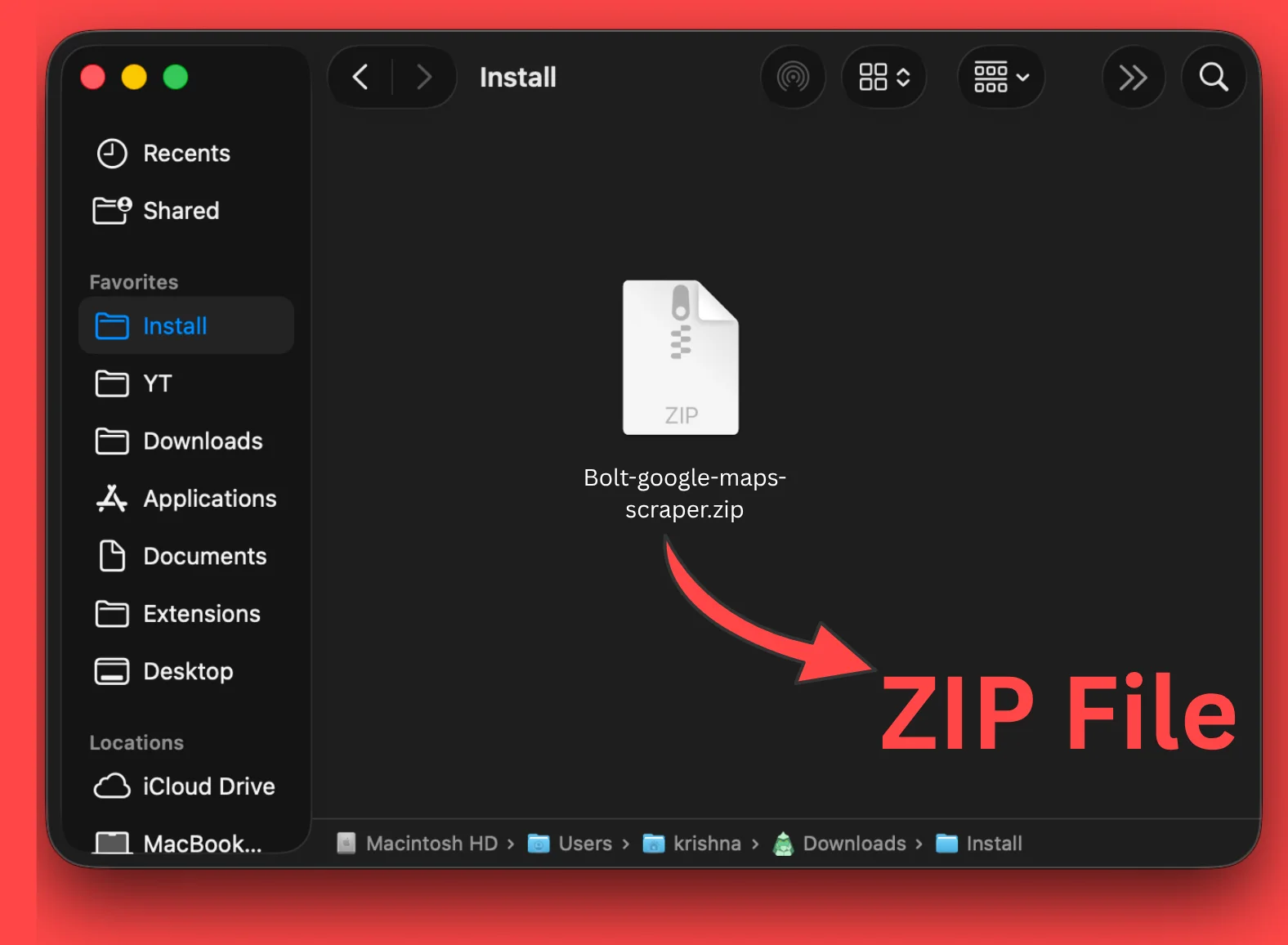
Download the Bolt's Google Maps Scraper
Download the extension from our official website or by clicking the button below.
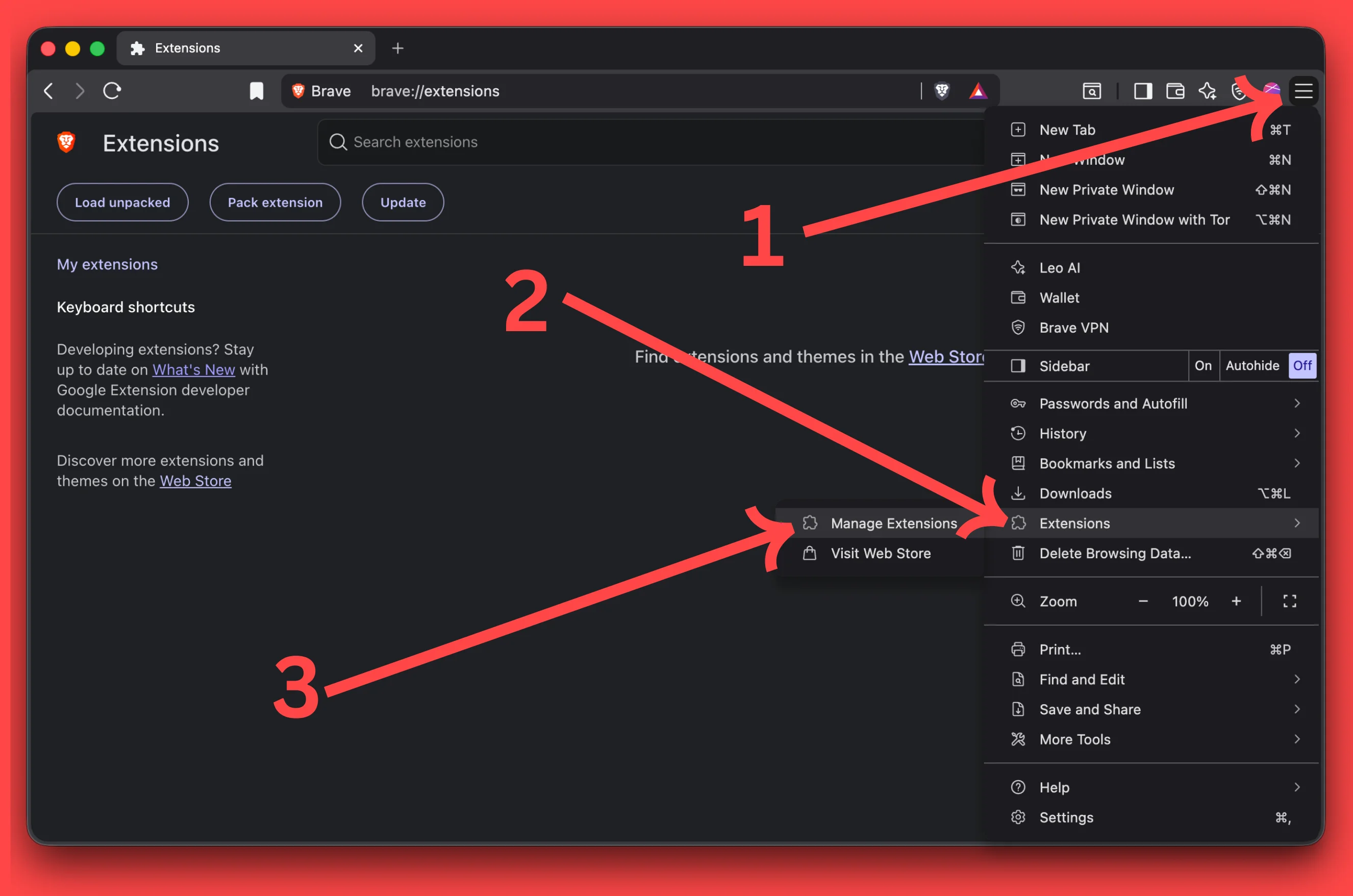
Open browser extensions
Chrome: Ellipsis ➜ Extensions ➜ Manage Extensions
In Chrome, go to: chrome://extensions/
Brave: Ellipsis ➜ Extensions ➜ Manage Extensions
In Brave, go to: brave://extensions/
Edge: Ellipsis ➜ Extensions ➜ Manage extensions
In Edge, go to: edge://extensions/
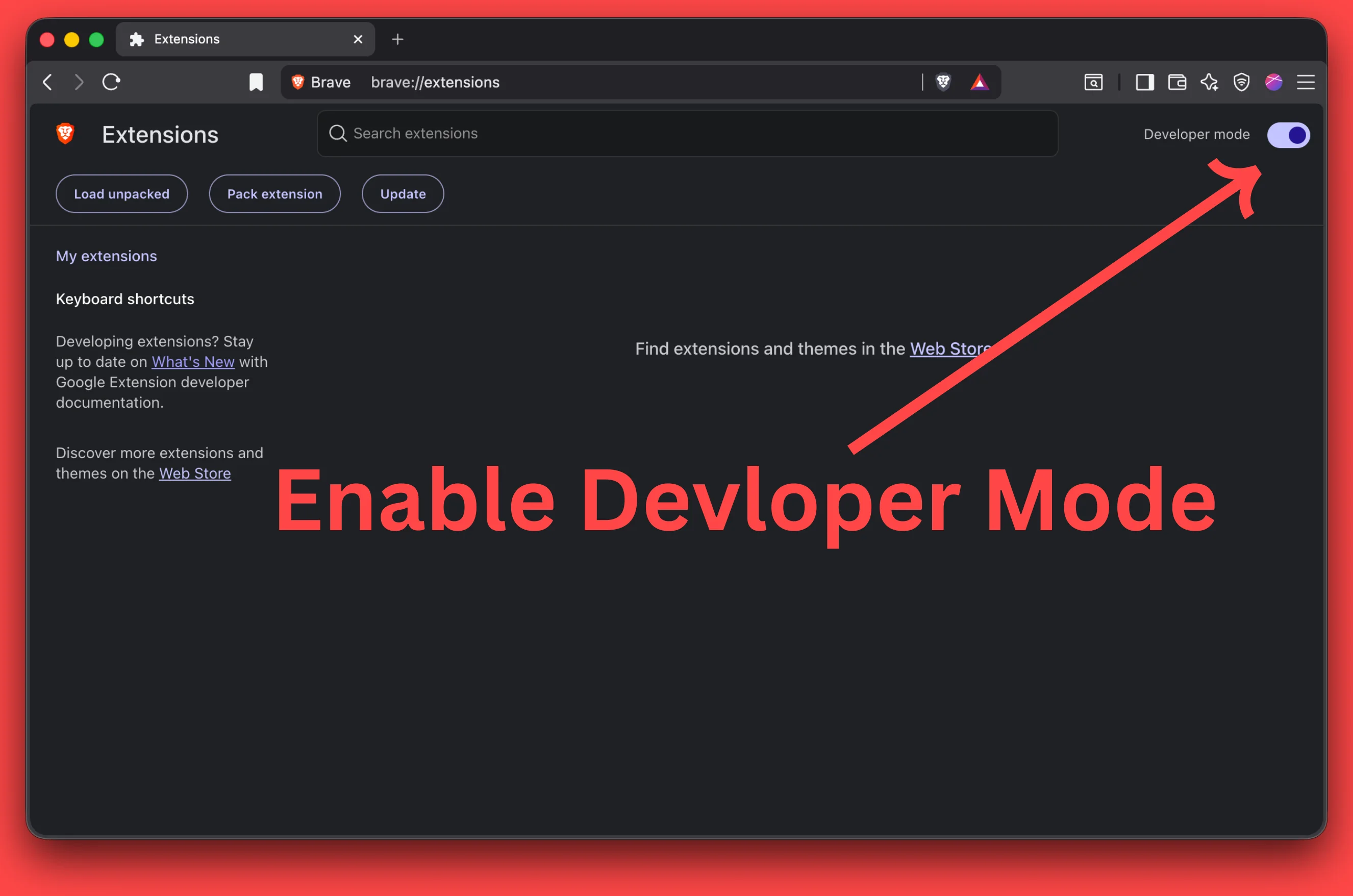
Enable the Developer mode
Enable the Developer mode from the top-right corner
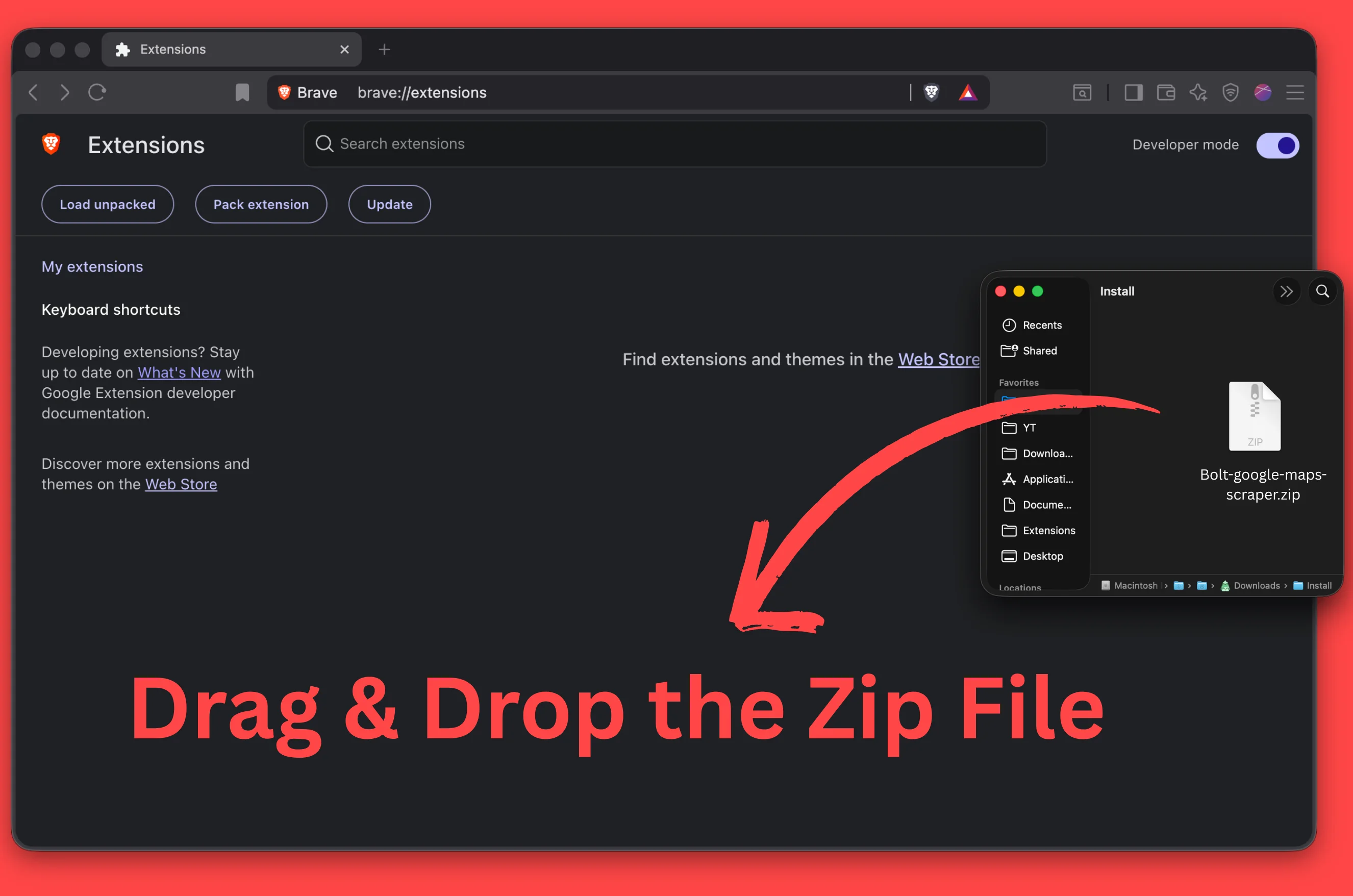
Install the extension (direct method)
Try to drag and drop the downloaded zip file directly to the extensions page.
If error shows, unzip the file
If an error occurs with the zip file, right-click and select "Extract All" to unzip the file.
Navigate to the extracted folder, making sure it contains the manifest.json file.
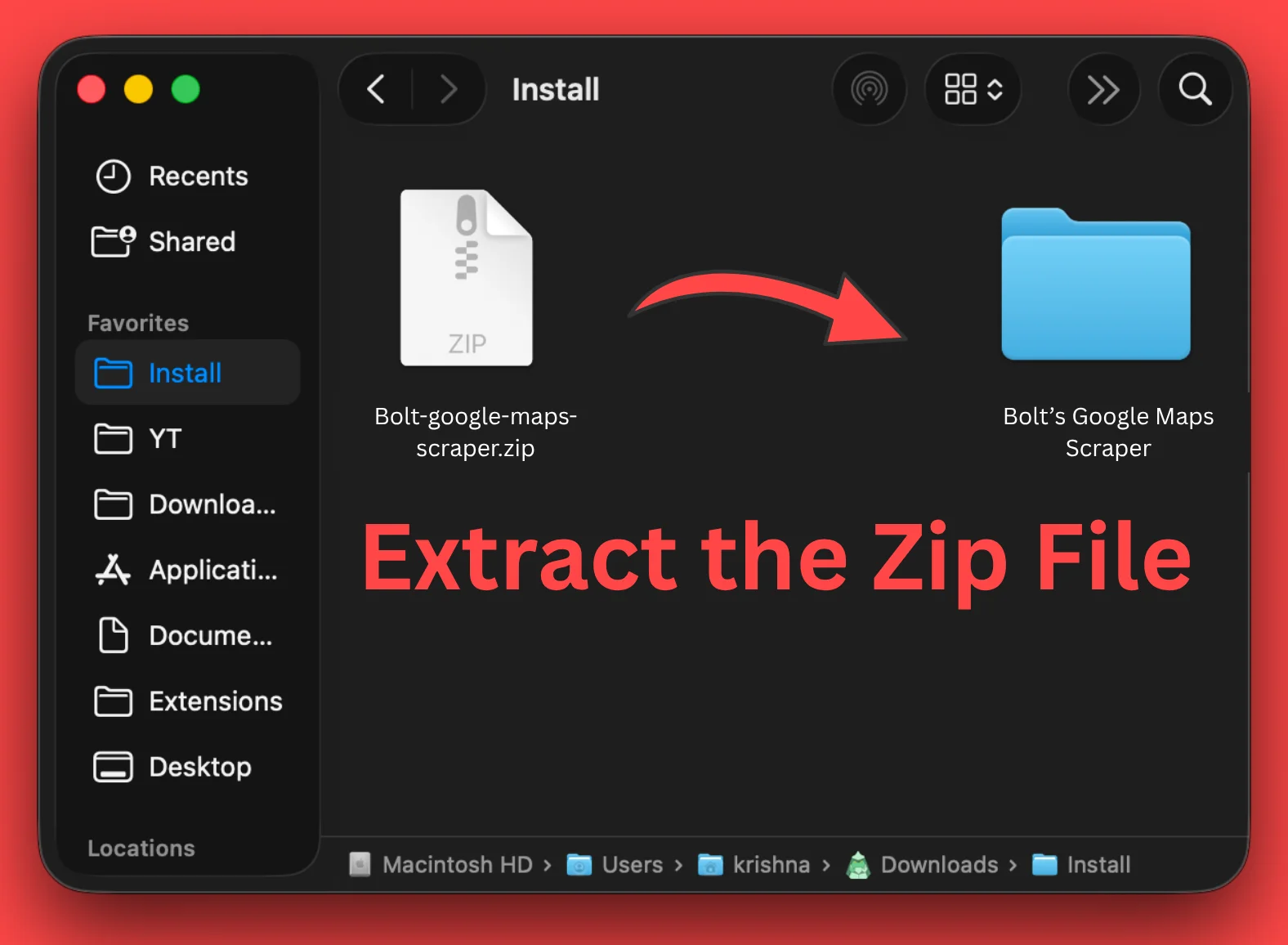
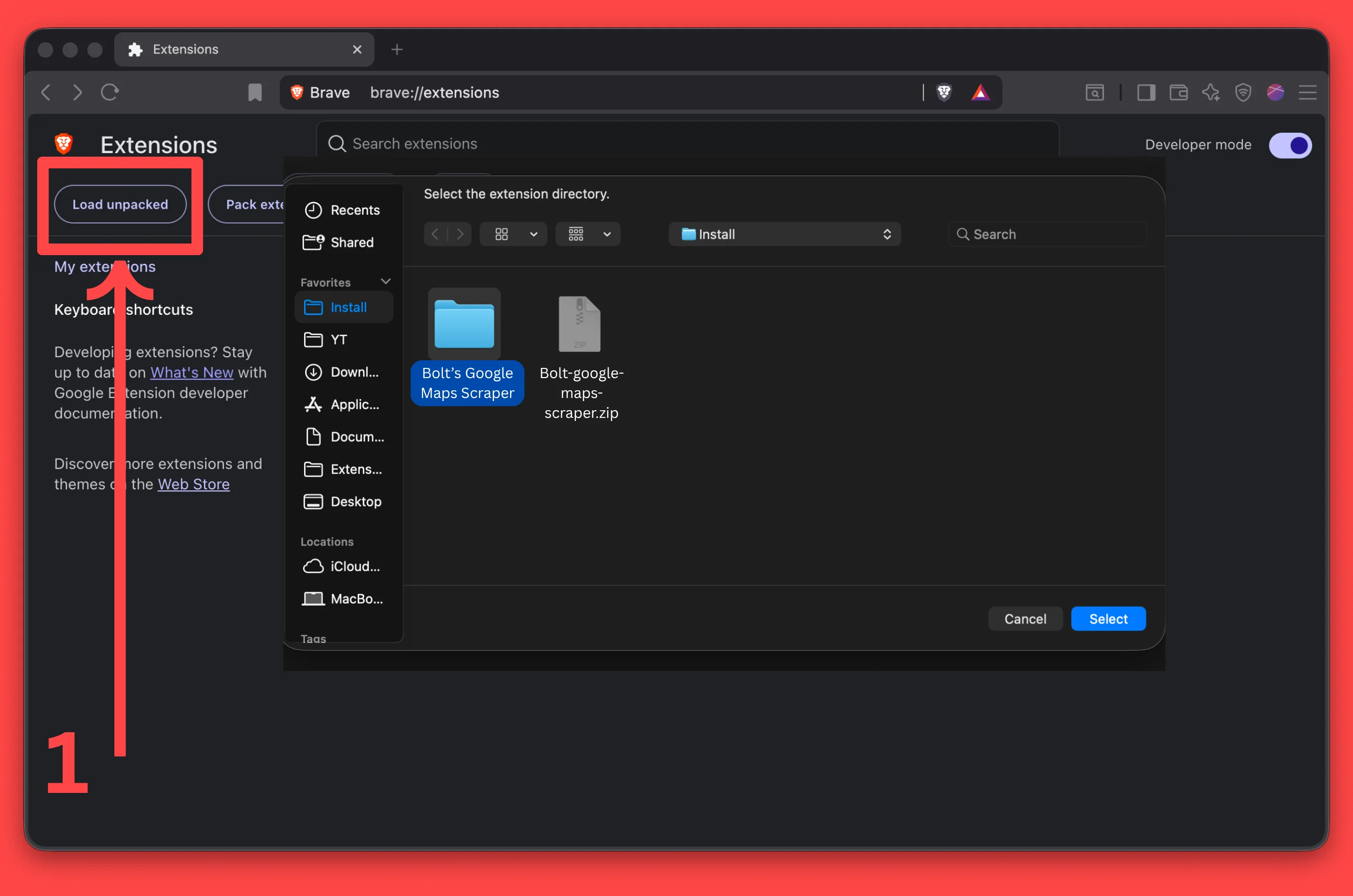
Install with extracted folder
Click on "Load unpacked" at top-left and select the extracted folder to install the extension.
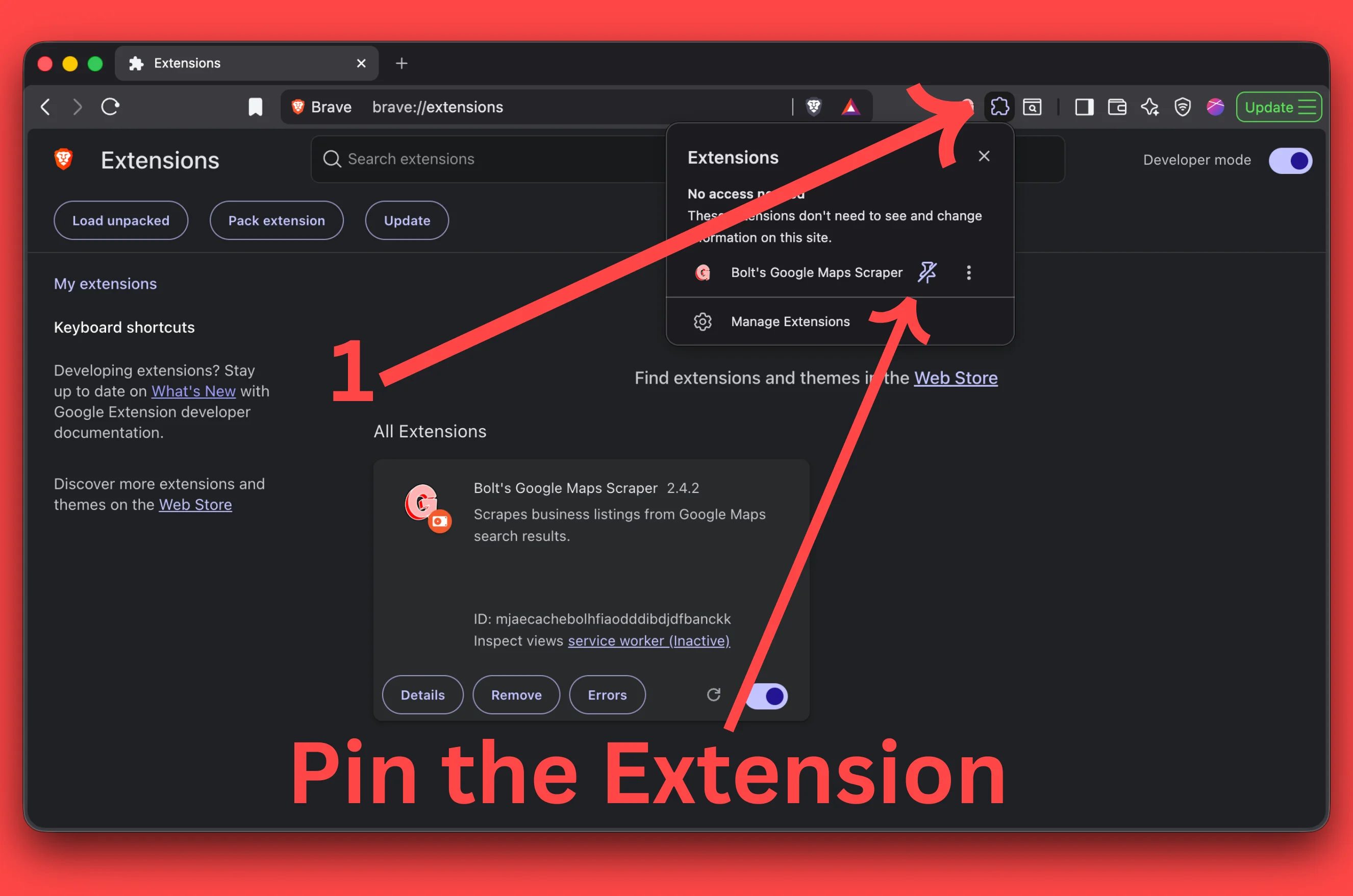
Pin the extension for easy access
Pin the extension to your browser toolbar for easy access.
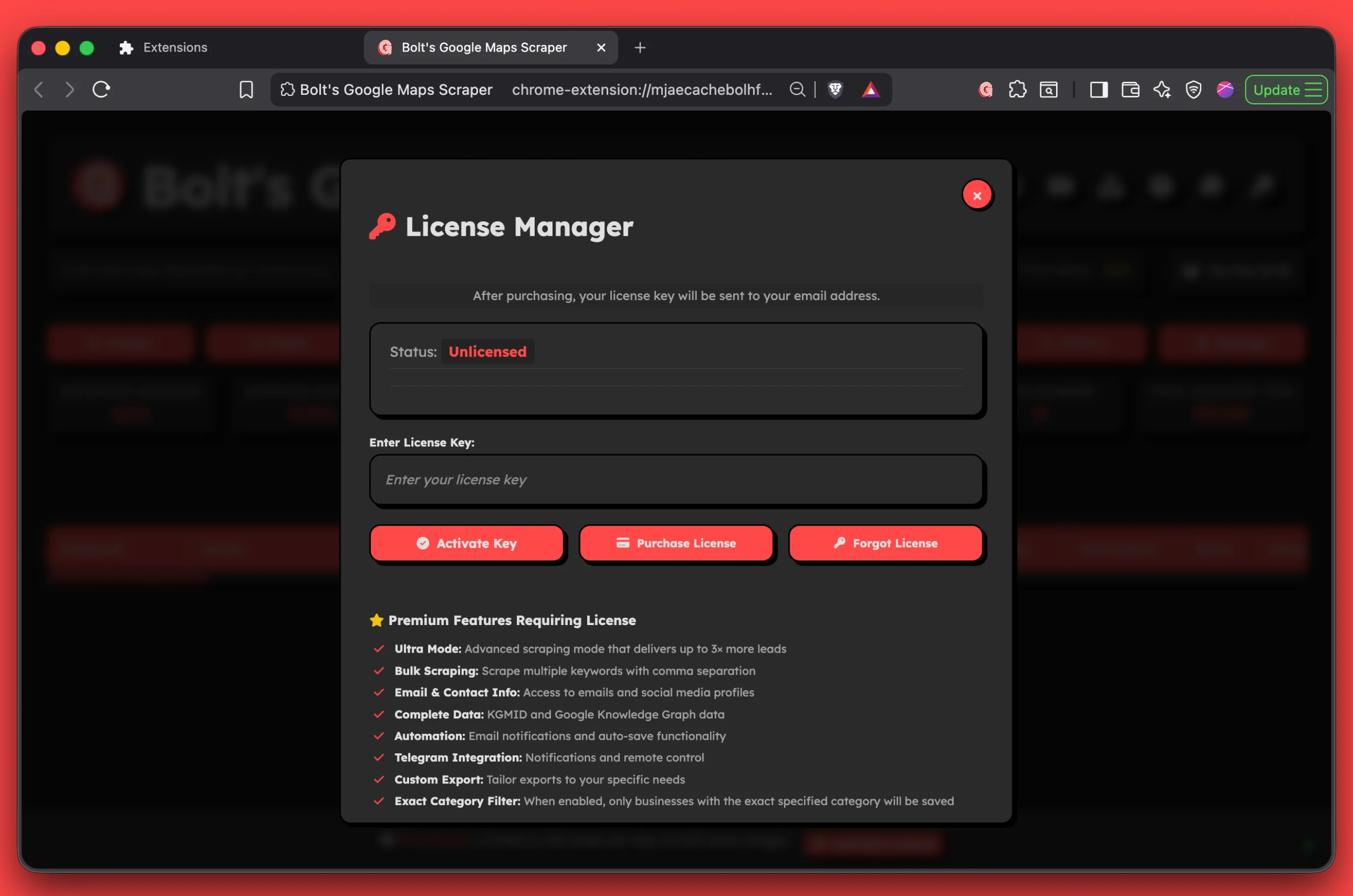
For paid versions: Activate your license key
Open the extension, click on the "key icon" in the top-right.
Click on Activate key button and enter the license key received in your email.
Ready to Use
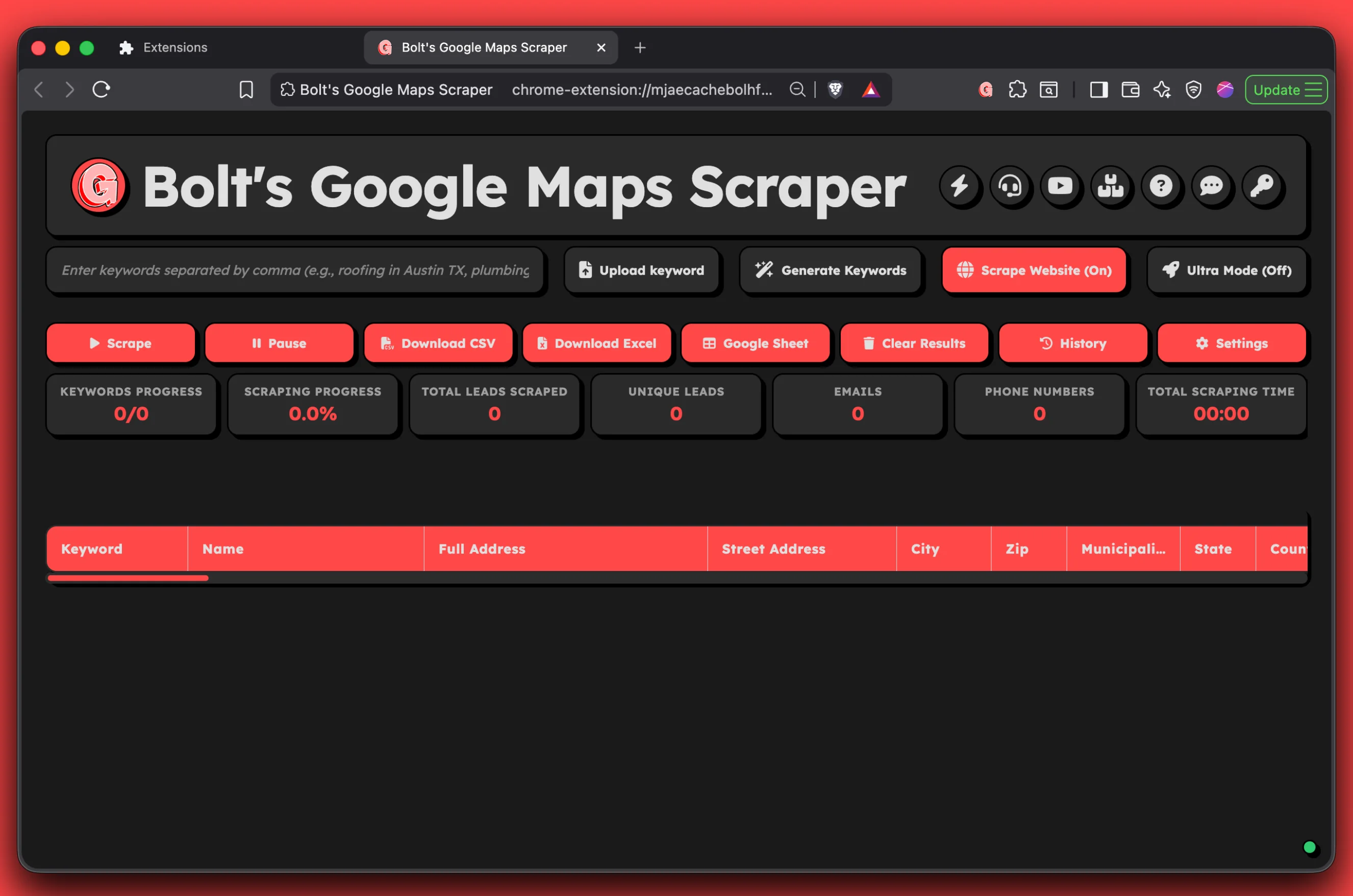
That's it! You have successfully installed the Bolt's Google Maps Scraper extension.
You can now start using it to extract business leads from Google Maps.
Need help with installation?
Our support team is available 24/7 to assist you with the installation or any other questions about the extension.